Appearance
How to release a template
Publish a template as a fixed version, name that version with a tag, and render against the tag, so the documents you have already shipped do not change when the template does.
- a version — a numbered snapshot of the content, fixed when you publish it
- a tag — a name you point at a version, and move when you release
- a slug — a readable name for the template itself
Work through steps 1 to 5 once in the editor, then move the two that repeat into CI in step 6.
1. Edit
Edit in the editor as usual. Every change is live: template=quarterly-report renders the template as it stands now.
2. Publish a version
Select File → Publish version and write what changed. The note is what you read when choosing a version to roll back to.
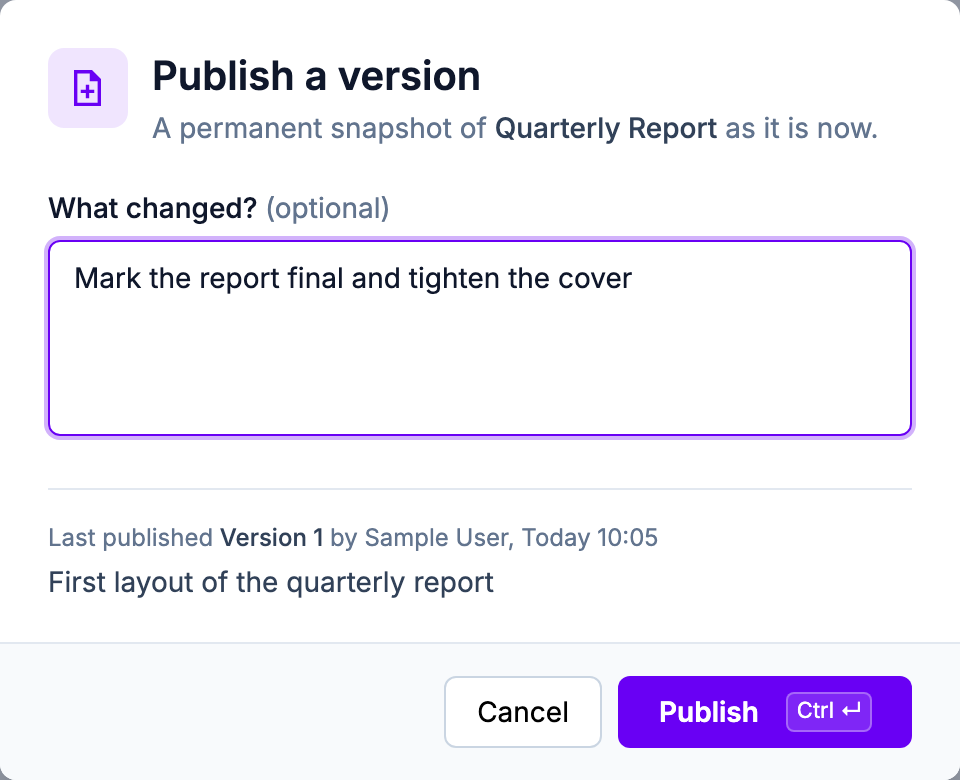
Versions count from 1 and are never edited or deleted. Publishing content identical to the newest version stores nothing and returns that same version.
shell
papermill version publish quarterly-report -m "Mark the report final"shell
curl -X POST "https://api.papermill.io/v2/templates/$TEMPLATE_ID/versions" \
  -H "Authorization: Bearer $PAPERMILL_API_KEY" \
  -H "Content-Type: application/json" \
  -d '{"message": "Mark the report final"}'
3. Name the template
Optional. Hover the template id in the toolbar and select the pencil.
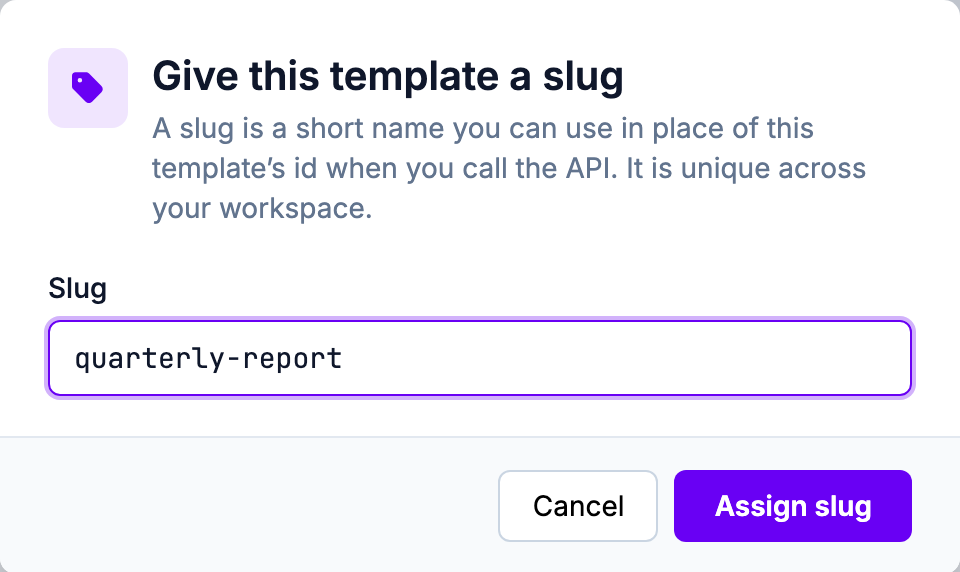
The slug then stands in for the id everywhere you address the template.

A slug names the template, not a version: quarterly-report still renders the current content. A slug is unique across your workspace, and a template holds one at a time — assigning a second releases the first. This is the one command that takes the id rather than the name:
shell
papermill slug set quarterly-report <template-id>4. Tag the version
Select File → Versions, then + Tag on the version to name.
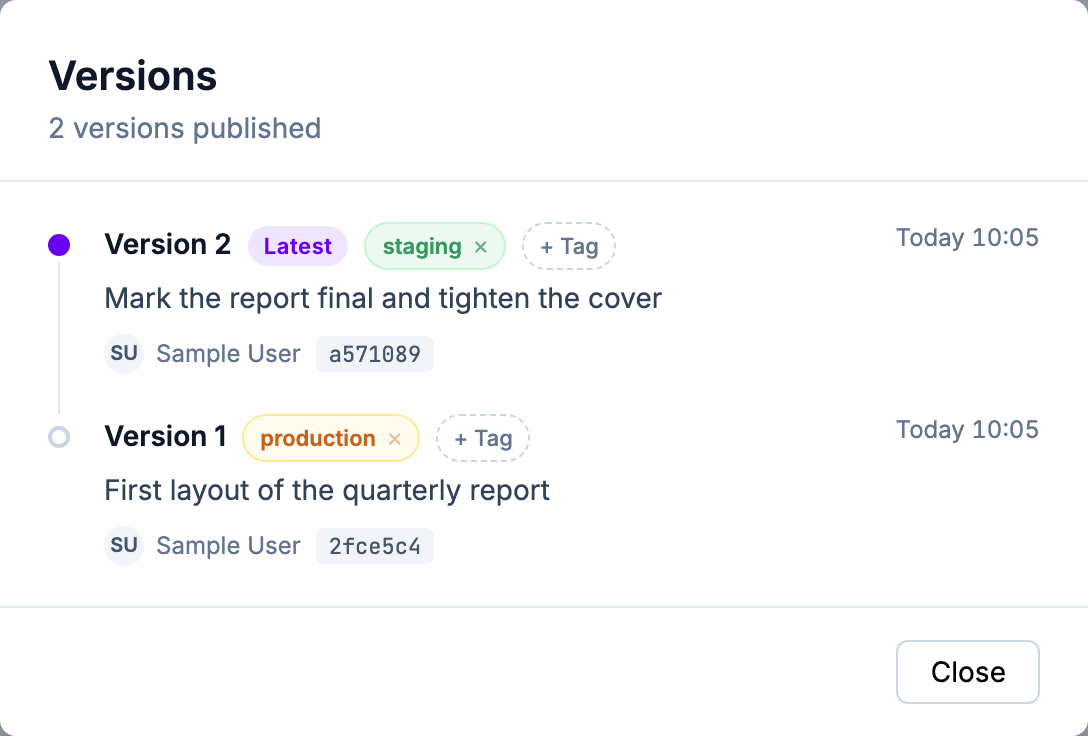
quarterly-report@staging now renders version 2, and quarterly-report@production still renders version 1. Callers keep rendering version 1 while you test version 2.
To release, move production onto version 2. Callers asking for @production need no change.
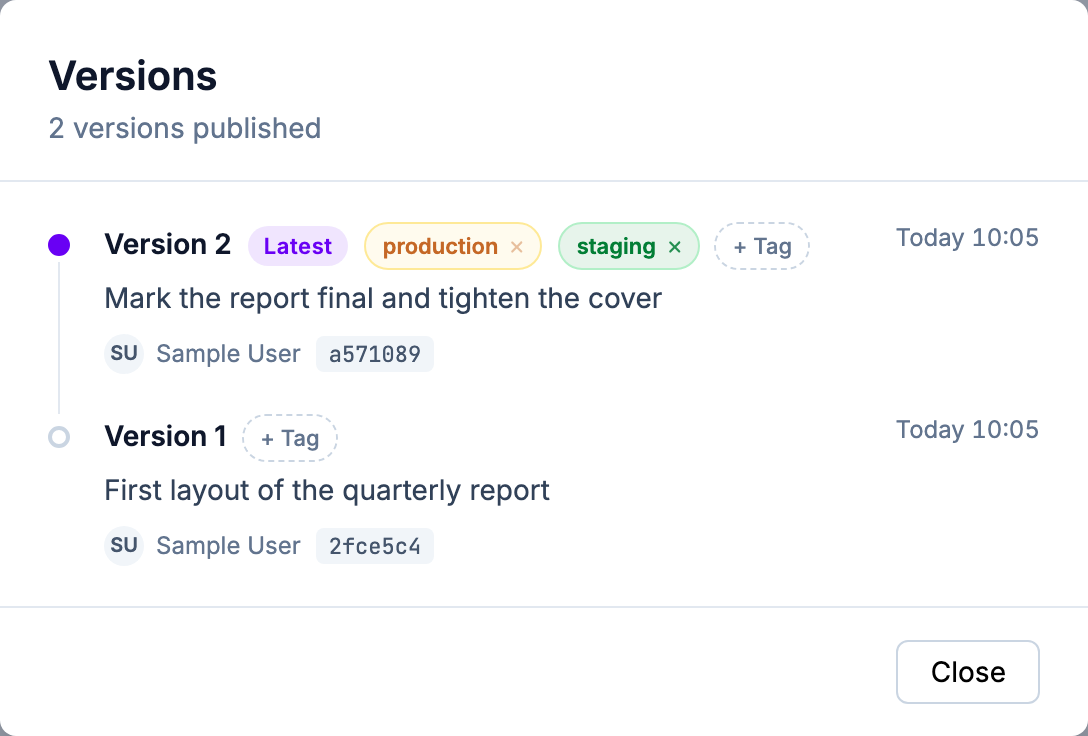
shell
papermill tag set quarterly-report production 25. Render it
Suffix the identifier with @, anywhere you would pass a template:
shell
curl -X POST "https://api.papermill.io/v2/pdf?template=quarterly-report@production" \
  -H "Authorization: Bearer $PAPERMILL_API_KEY" \
  -H "Content-Type: application/json" \
  -o report.pdf \
  -d '{"customer": "Acme Co"}'
@3 renders that version, @latest renders the newest published version, and @live renders the current content. Your payload merges into a version as it merges into a live template.
For the full grammar and the errors it returns, see Versions & Tags.
6. Hand it to CI
CI controls when a version is published and which tag names it. The content published is the template as Papermill holds it.
Set PAPERMILL_API_KEY in the job environment; the CLI then needs no login.
yaml
name: Publish the quarterly report
on:
  workflow_dispatch:

jobs:
  publish:
    runs-on: ubuntu-latest
    env:
      PAPERMILL_API_KEY: ${{ secrets.PAPERMILL_API_KEY }}
    steps:
      - run: npm install -g @papermill/cli
      - name: Publish, and point staging at what was published
        run: |
          version=$(papermill version publish quarterly-report -m "Scheduled publish" --json | jq -r .version)
          papermill tag set quarterly-report staging "$version"
Put promotion in a separate job, triggered by a person:
yaml
promote:
  runs-on: ubuntu-latest
  env:
    PAPERMILL_API_KEY: ${{ secrets.PAPERMILL_API_KEY }}
  steps:
    - run: npm install -g @papermill/cli
    - name: Release the version staging has been proving
      run: |
        version=$(papermill tag get quarterly-report staging --json | jq -r .version)
        papermill tag set quarterly-report production "$version"
Both jobs are safe to re-run: publishing unchanged content stores nothing, and pointing a tag at the version it already names changes nothing.
To roll back, point the tag at the earlier version:
shell
papermill tag set quarterly-report production 1Version 2 is unchanged. Point the tag at it again to roll forward.
Keep a copy in your repository
If you also keep the template in git, add papermill version verify as a build step and name the tag you release from. The step fails once the committed file is no longer what that tag renders:
shell
papermill version verify quarterly-report templates/quarterly-report.press productionFor what it compares, see Check a template against what Papermill holds.
Release from an agent
The MCP server exposes every step above as a tool.